Troubleshooting
Debug Messages
The Bareos programs contain a lot of debug messages. Normally, these are not printed. See the setdebug chapter about how to enable them.
Client Access Problems
There are several reasons why a Bareos Director could not contact a client on a different machine. They are:
Check if the client file daemon is really running.
The Client address or port is incorrect or not resolved by DNS. See if you can ping the client machine using the same address as in the Client record.
You have a firewall, and it is blocking traffic on port 9102 between the Director’s machine and the Client’s machine (or on port 9103 between the Client and the Storage daemon machines).
Your password or names are not correct in both the Director and the Client machine. Try configuring everything identical to how you run the client on the same machine as the Director, but just change the address. If that works, make the other changes one step at a time until it works.
Some of the DNS and Firewall problems can be circumvented by configuring clients as Passive Clients or using Client Initiated Connection .
Difficulties Connecting from the FD to the SD
If you are having difficulties getting one or more of your File daemons to connect to the Storage
daemon, it is most likely because you have not used a fully qualified domain name on the
Address (Dir->Storage) directive. That is the resolver on the File daemon’s machine
(not on the Director’s) must be able to resolve the name you supply into an IP address. An example
of an address that is guaranteed not to work: localhost. An example that may work:
bareos-sd1. An example that is more likely to work: bareos-sd1.example.com.
You can verify how a Bareos File Daemon resolves a DNS name by the following command:
*resolve client=bareos-fd NONEXISTINGHOSTNAME
Connecting to Client bareos-fd at bareos:9102
bareos-fd: Failed to resolve NONEXISTINGHOSTNAME
*resolve client=bareos-fd bareos-sd1.example.com
Connecting to Client bareos-fd at bareos:9102
bareos-fd resolves bareos-sd1.example.com to host[ipv4;192.168.0.1]
If your address is correct, then make sure that no other program is using the port 9103 on the Storage daemon’s machine. The Bacula project has reserved these port numbers by IANA, therefore they should only be used by Bacula and its replacements like Bareos. However, apparently some HP printers do use these port numbers. A ss -lntp on the Bareos Storage Daemon’s machine can determine who is listening on the 9103 port (used for FD to SD communications in Bareos).
Authorization Errors
During the authorization process, the Bareos File Daemon and Bareos Storage Daemon also require that the Bareos Director authenticates itself, so both ends require the other to have the correct name and password.
If you have edited the configuration files and modified any name or any password, and you are getting authentication errors, then your best bet is to go back to the original configuration files generated by the Bareos installation process. Make only the absolutely necessary modifications to these files – e.g. add the correct email address. Then follow the instructions in the Running Bareos chapter of this manual. You will run a backup to disk and a restore. Only when that works, should you begin customization of the configuration files.
Some users report that authentication fails if there is not a proper reverse DNS lookup entry for the machine. This seems to be a requirement of gethostbyname(), which is what Bareos uses to translate names into IP addresses. If you cannot add a reverse DNS entry, or you don’t know how to do so, you can avoid the problem by specifying an IP address rather than a machine name in the appropriate Bareos configuration file.
Here is a picture that indicates what names/passwords in which files/Resources must match up:
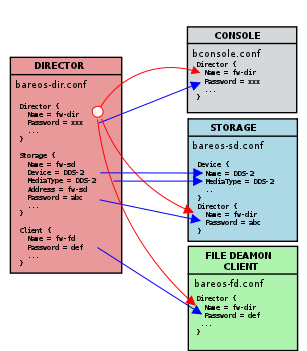
In the left column, you will find the Bareos Director, Bareos Storage Daemon, and Bareos File Daemon resources, with their names and passwords – these are all in the Bareos Director configuration. The right column is where the corresponding values should be found in the Console, Bareos Storage Daemon (SD), and Bareos File Daemon (FD) configuration files.
Another thing to check is to ensure that the Bareos component you are trying to access has Maximum Concurrent Jobs set large enough to handle each of the Jobs and the Console that want to connect simultaneously. Once the maximum connections has been reached, each Bareos component will reject all new connections.
Concurrent Jobs
Bareos can run multiple concurrent jobs. Using the Maximum Concurrent Jobs directives, you can configure how many and which jobs can be run simultaneously:
Bareos Director
Bareos Storage Daemon
For example, if you want two different jobs to run simultaneously backing up the same Client to
the same Storage device, they will run concurrently only if you have set
Maximum Concurrent Jobs greater than one in the Director (Dir)resource, the Client (Dir) resource, and the Storage (Dir)resource in Bareos Director configuration.
When running concurrent jobs without Data Spooling, the volume format becomes more complicated, consequently, restores may take longer if Bareos must sort through interleaved volume blocks from multiple simultaneous jobs. This can be avoided by having each simultaneous job write to a different volume or by using data spooling. We recommend that you read the Data Spooling of this manual first, then test your multiple concurrent backup including restore testing before you put it into production.
When using random access media as backup space (e.g. disk), you should also read the chapter about Concurrent Disk Jobs.
Below is a super stripped down Bareos Director configuration showing you the four places where that must be
modified to allow the same job NightlySave (Dir->Job) to run up to four times
concurrently. The change to the Job resource is not necessary if you want different Jobs to run
at the same time, which is the normal case.
Note
Version >= 24.0.0 the following directives have been deprecated and can be removed from any configuration.
Bareos Storage Daemon
Bareos File Daemon
Tape Labels: ANSI or IBM
Warning
ANSI/IBM labels have been deprecated as of Bareos 23. Support will be removed in the future.
By default, Bareos uses its own tape label (Label Type (Dir->Pool)). However, Bareos
also supports reading and writing ANSI and IBM tape labels.
Reading
Reading ANSI/IBM labels is important, if some of your tapes are used by other programs that also support ANSI/IBM labels. For example, LTFS tapes are indicated by an ANSI label.
If your are running Bareos in such an environment, you must set
Check Labels (Sd->Device) to yes, otherwise Bareos will not recognize that these
tapes are already in use.
Writing
To configure Bareos to also write ANSI/IBM tape labels, use Label Type (Dir->Pool) or
Label Type (Sd->Device). With the proper configuration, you can force Bareos to
require ANSI or IBM labels.
Even though Bareos will recognize and write ANSI and IBM labels, it always writes its own tape labels as well.
If you have labeled your volumes outside of Bareos, then the ANSI/IBM label will be recognized by Bareos only if you have created the HDR1 label with BAREOS.DATA in the filename field (starting with character 5). If Bareos writes the labels, it will use this information to recognize the tape as a Bareos tape. This allows ANSI/IBM labeled tapes to be used at sites with multiple machines and multiple backup programs.
Tape Drive
This chapter is concerned with testing and configuring your tape drive to make sure that it will work properly with Bareos using the btape program.
Get Your Tape Drive Working
In general, you should follow the following steps to get your tape drive to work with Bareos. Start
with a tape mounted in your drive. If you have an autochanger, load a tape into the drive. We use
/dev/nst0 as the tape drive name, you will need to adapt it according to your system.
Do not proceed to the next item until you have succeeded with the previous one.
Make sure that Bareos (the Storage daemon) is not running or that you have unmounted the drive you will use for testing.
Use tar to write to, then read from your drive:
mt -f /dev/nst0 rewind
tar cvf /dev/nst0 .
mt -f /dev/nst0 rewind
tar tvf /dev/nst0
Make sure you have a valid and correct Device resource corresponding to your drive. For Linux users, generally, the default one works. For FreeBSD users, there are two possible Device configurations (see below). For other drives and/or OSes, you will need to first ensure that your system tape modes are properly setup (see below), then possibly modify you Device resource depending on the output from the btape program (next item). When doing this, you should consult the Storage Daemon Configuration of this manual.
If you are using a Fibre Channel to connect your tape drive to Bareos, please be sure to disable any caching in the NSR (network storage router, which is a Fibre Channel to SCSI converter).
Run the btape test command:
btape /dev/nst0
test
It isn’t necessary to run the autochanger part of the test at this time, but do not go past this point until the basic test succeeds. If you do have an autochanger, please be sure to read the Autochanger chapter of this manual.
Run the btape fill command, preferably with two volumes. This can take a long time. If you have an autochanger and it is configured, Bareos will automatically use it. If you do not have it configured, you can manually issue the appropriate mtx command, or press the autochanger buttons to change the tape when requested to do so.
Run Bareos, and backup a reasonably small directory, say 60 Megabytes. Do three successive backups of this directory.
Stop Bareos, then restart it. Do another full backup of the same directory. Then stop and restart Bareos.
Do a restore of the directory backed up, by entering the following restore command, being careful to restore it to an alternate location:
restore select all done
yes
Do a diff on the restored directory to ensure it is identical to the original directory. If you are going to backup multiple different systems (Linux, Windows, Mac, Solaris, FreeBSD, …), be sure you test the restore on each system type.
If you have an autochanger, you should now go back to the btape program and run the autochanger test:
btape /dev/nst0
auto
Adjust your autochanger as necessary to ensure that it works correctly. See the Autochanger chapter of this manual for a complete discussion of testing your autochanger.
Testing & Debugging Tape Speed
If you find that your tape drive is not keeping up with the data rate of your backups, you can check several things to help determine the cause of the problem.
Please consider the following informations when testing tape speed:
Please set the tape drive device
Maximum File Size (Sd->Device)to a reasonable value. For LTO-7 a value of 200 GiB should work pretty good. You can change the value at will. While it will affect organization of data on your tapes, it will be read and write compatible no matter what you configure.For a little context: When Bareos writes to tape, it adds a file-mark now and then to improve search times on restore. By default these file-marks are written in immediate mode (i.e. the syscall will only return after the file mark was physically written to the tape). Thus every file-mark will imply a buffer-flush of the drive. While this may not sound like a problem, modern tape drives have internal buffers of 1 GiB and more. Thus writing a file-mark every 1 GiB (which is still the no more well suited default in Bareos), will result in the buffer being flushed before it is filled.
Do tape performance tests with incompressible random data, everything else will produce bogus results that are toally misleading. The data size must also be bigger than the buffer size of the drive, otherwise the drive will just write from its buffer and not from the host, which will also produce bogus results.
The following command will write 1 GiB of random data to tape, which should be enough for testing most drives. You can increase the count if you have a very fast drive or if you want to test with more data.
dd if=/dev/urandom of=/tmp/random bs=1M count=1024 status=progress
   1073741824 bytes (1.1 GB, 1.0 GiB) copied, 2.41229 s, 445 MB/s

tar --totals --verbose --create --file /dev/nst0 /tmp/random
   tar: Removing leading `/' from member names
   /tmp/random
   Total bytes written: 1073745920 (1.1GiB, 210MiB/s)
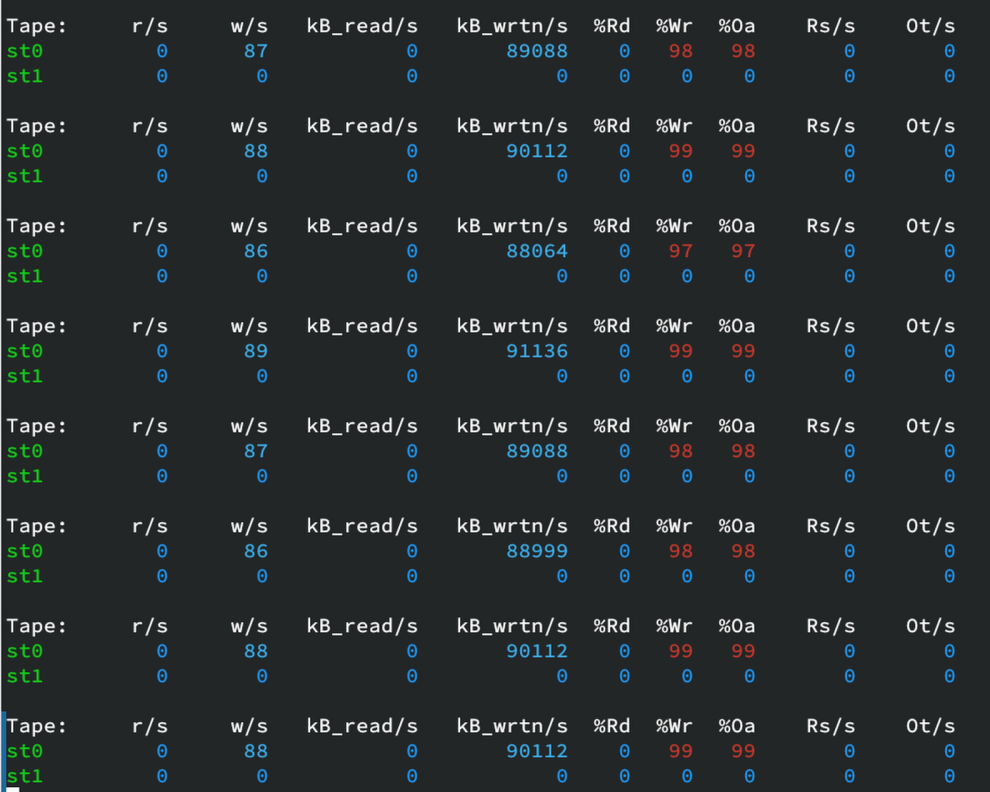
tapestat command
You can monitor performance operations of your tape drive using the tapestat 1 during a job to see how well your tape drive is keeping up with the data rate.
sg_logs command
You can also use the sg_logs --all /dev/sgX command to see detailled informations about
the tape drive status and performance or errors counters. Where /dev/sgX is the the SCSI
generic device corresponding to your tape drive. (see lsscsi -g)
Output vary depending if the tape is loaded or not, and drive model.
#!/bin/sh
sg_logs --all /dev/sg12

 HP        Ultrium 6-SCSI    331U

   Supported log pages  [0x0]:
      0x00        Supported log pages [sp]
      0x02        Write error [we]
      0x03        Read error [re]
      0x0c        Sequential access device [sad]
      0x0d        Temperature [temp]
      0x11        DT Device status [dtds]
      0x12        Tape alert response [tar]
      0x13        Requested recovery [rr]
      0x14        Device statistics [ds]
      0x15        Service buffers information [sbi]
      0x16        Tape diagnostic data [tdd]
      0x17        Volume statistics [vs]
      0x18        Protocol specific port [psp]
      0x1b        Data compression [dc]
      0x2e        Tape alert [ta]
      0x30        Tape usage (lto-5, 6) [tu_]
      0x31        Tape capacity (lto-5, 6) [tc_]
      0x32        Data compression (lto-5) [dc_]
      0x34        Read forward errors (lto-5) [rfe_]
      0x35        DT Device Error (lto-5, 6) [dtde_]
      0x3e        Device Status (lto-5, 6) [ds_]

   Write error counter page  [0x2]
   Errors corrected without substantial delay = 0
   Errors corrected with possible delays = 0
   Total rewrites or rereads = 0
   Total errors corrected = 0
   Total times correction algorithm processed = 0
   Total bytes processed = 0
   Total uncorrected errors = 0

   Read error counter page  [0x3]
   Errors corrected without substantial delay = 371
   Errors corrected with possible delays = 0
   Total rewrites or rereads = 0
   Total errors corrected = 0
   Total times correction algorithm processed = 371
   Total bytes processed = 5839
   Total uncorrected errors = 0

   Sequential access device page (ssc-3)
   Data bytes received with WRITE commands: 0 GB
   Data bytes written to media by WRITE commands: 0 GB
   Data bytes read from media by READ commands: 10 GB
   Data bytes transferred by READ commands: 14 GB
   Native capacity from BOP to EOD: 2520811 MB
   Native capacity from BOP to EW of current partition: 2624517 MB
   Minimum native capacity from EW to EOP of current partition: 99008 MB
   Native capacity from BOP to current position: 405 MB
   Maximum native capacity in device object buffer: 418 MB
   Cleaning action not required (or completed)

   Temperature page  [0xd]
   Current temperature = 45 C
   Reference temperature = <not available>

   DT device status page (ssc-3, adc-3) [0x11]
   Very high frequency data:
   PAMR=1 HUI=0 MACC=1 CMPR=1 WRTP=0 CRQST=0 CRQRD=0 DINIT=1
   INXTN=0 RAA=0 MPRSNT=1 MSTD=1 MTHRD=1 MOUNTED=1
   DT device activity: No DT device activity
   VS=1 TDDEC=0 EPP=0 ESR=0 RRQST=0 INTFC=1 TAFC=0
   Very high frequency polling delay:  16 milliseconds
   Primary port 1 status:
      SAS: negotiated physical link rate: 6 Gbps
      signal=1, pic=1, hashed SAS addr: 0x14037633
      SAS addr: 0x500110a0015ec9e0
   Primary port 2 status:
      SAS: negotiated physical link rate: 6 Gbps
      signal=1, pic=1, hashed SAS addr: 0x857590
      SAS addr: 0x500110a0015ec9e1
   Vendor specific [parameter_code=0x8000]:
   00     80 00 03 06 b1 17 00 82  00 06                      ..........
   Vendor specific [parameter_code=0x8010]:
   00     80 10 03 08 01 00 00 00  00 00 00 00                ............
   Vendor specific [parameter_code=0xb101]:
   00     b1 01 03 10 00 00 00 00  00 00 00 00 00 00 00 00    ................
   10     00 00 00 00                                         ....
   Vendor specific [parameter_code=0xb102]:
   00     b1 02 03 10 00 00 00 00  00 00 00 00 00 00 00 00    ................
   10     00 00 00 00                                         ....

   TapeAlert response page (ssc-3, adc-3) [0x12]
   Flag01h: 0  02h: 0  03h: 0  04h: 0  05h: 0  06h: 0  07h: 0  08h: 0
   Flag09h: 0  0Ah: 0  0Bh: 0  0Ch: 0  0Dh: 0  0Eh: 0  0Fh: 0  10h: 0
   Flag11h: 0  12h: 0  13h: 0  14h: 0  15h: 0  16h: 0  17h: 0  18h: 0
   Flag19h: 0  1Ah: 0  1Bh: 0  1Ch: 0  1Dh: 0  1Eh: 0  1Fh: 0  20h: 0
   Flag21h: 0  22h: 0  23h: 0  24h: 0  25h: 0  26h: 0  27h: 0  28h: 0
   Flag29h: 0  2Ah: 0  2Bh: 0  2Ch: 0  2Dh: 0  2Eh: 0  2Fh: 0  30h: 0
   Flag31h: 0  32h: 0  33h: 0  34h: 0  35h: 0  36h: 0  37h: 0  38h: 0
   Flag39h: 0  3Ah: 0  3Bh: 0  3Ch: 0  3Dh: 0  3Eh: 0  3Fh: 0  40h: 0

   Requested recovery page (ssc-3) [0x13]
   Recovery procedures:
      Recovery not requested

   Device statistics page (ssc-3 and adc)
   Lifetime media loads: 751
   Lifetime cleaning operations: 0
   Lifetime power on hours: 99163
   Lifetime media motion (head) hours: 1476
   Lifetime metres of tape processed: 21687480
   Lifetime media motion (head) hours when incompatible media last loaded: 0
   Lifetime power on hours when last temperature condition occurred: 0
   Lifetime power on hours when last power consumption condition occurred: 0
   Media motion (head) hours since last successful cleaning operation: 0
   Media motion (head) hours since 2nd to last successful cleaning: 0
   Media motion (head) hours since 3rd to last successful cleaning: 0
   Lifetime power on hours when last operator initiated forced reset
      and/or emergency eject occurred: 0
   Lifetime power cycles: 28
   Volume loads since last parameter reset: 751
   Hard write errors: 0
   Hard read errors: 0
   Duty cycle sample time (ms): 16579047000
   Read duty cycle: 0
   Write duty cycle: 0
   Activity duty cycle: 0
   Volume not present duty cycle: 4
   Ready duty cycle: 95
   MBs transferred from app client in duty cycle sample time: 6240816
   MBs transferred to app client in duty cycle sample time: 3519830
   Drive manufacturer's serial number: 0
   Drive serial number: 0
   Medium removal prevented: 1
   Maximum recommended mechanism temperature exceeded: 0
   Media motion (head) hours for each medium type:
      Density code: 0x46, Medium type: 0x0
         Medium motion hours: 0
      Density code: 0x46, Medium type: 0x1
         Medium motion hours: 0
      Density code: 0x58, Medium type: 0x0
         Medium motion hours: 390
      Density code: 0x58, Medium type: 0x1
         Medium motion hours: 0
      Density code: 0x5a, Medium type: 0x0
         Medium motion hours: 1103
      Density code: 0x5a, Medium type: 0x1
         Medium motion hours: 0

   Service buffer information page (adc-3) [0x15]
   Service buffer identifier: 0x0
      Buffer id: 0x41, tu=0, nmp=0, nmm=0, offline=0
      pd=0, code_set: Binary, Service buffer title:
         DT Device Error Log
   Service buffer identifier: 0x3
      Buffer id: 0x44, tu=0, nmp=0, nmm=0, offline=0
      pd=0, code_set: Binary, Service buffer title:
         Health & Error Log

   Tape diagnostics data page (ssc-3) [0x16]
   Parameter code: 0
      Density code: 0x5a
      Medium type: 0x0
      Lifetime media motion hours: 1410
      Repeat: 0
      Sense key: 0x3 [Medium Error]
      Additional sense code: 0x14
      Additional sense code qualifier: 0x0
         [Additional sense: Recorded entity not found]
      Vendor specific code qualifier: 0x5090
      Product revision level: 858992981
      Hours since last clean: 0
      Operation code: 0x11
      Service action: 0x0
      Medium id number (in hex):
   00     57 31 33 30 39 31 33 34  32 30 00 00 00 00 00 00    W130913420......
   10     00 00 00 00 00 00 00 00  00 00 00 00 00 00 00 00    ................
      Timestamp origin: 0x0
      Timestamp:
   00     00 00 97 2a 9b 05
   Parameter code: 1
      Density code: 0x5a
      Medium type: 0x0
      Lifetime media motion hours: 1410
      Repeat: 0
      Sense key: 0x3 [Medium Error]
      Additional sense code: 0x14
      Additional sense code qualifier: 0x0
         [Additional sense: Recorded entity not found]
      Vendor specific code qualifier: 0x5090
      Product revision level: 858992981
      Hours since last clean: 0
      Operation code: 0x11
      Service action: 0x0
      Medium id number (in hex):
   00     57 31 33 30 39 31 33 34  32 30 00 00 00 00 00 00    W130913420......
   10     00 00 00 00 00 00 00 00  00 00 00 00 00 00 00 00    ................
      Timestamp origin: 0x0
      Timestamp:
   00     00 00 97 27 bc f3
   Parameter code: 2
      Density code: 0x5a
      Medium type: 0x0
      Lifetime media motion hours: 1410
      Repeat: 0
      Sense key: 0x3 [Medium Error]
      Additional sense code: 0x14
      Additional sense code qualifier: 0x0
         [Additional sense: Recorded entity not found]
      Vendor specific code qualifier: 0x5090
      Product revision level: 858992981
      Hours since last clean: 0
      Operation code: 0x11
      Service action: 0x0
      Medium id number (in hex):
   00     57 31 33 30 39 31 33 34  30 34 00 00 00 00 00 00    W130913404......
   10     00 00 00 00 00 00 00 00  00 00 00 00 00 00 00 00    ................
      Timestamp origin: 0x0
      Timestamp:
   00     00 00 93 26 ef 96
   Parameter code: 3
      Density code: 0x5a
      Medium type: 0x0
      Lifetime media motion hours: 1396
      Repeat: 0
      Sense key: 0x3 [Medium Error]
      Additional sense code: 0x14
      Additional sense code qualifier: 0x0
         [Additional sense: Recorded entity not found]
      Vendor specific code qualifier: 0x5090
      Product revision level: 858992981
      Hours since last clean: 0
      Operation code: 0x11
      Service action: 0x0
      Medium id number (in hex):
   00     59 31 33 30 39 31 33 34  31 38 00 00 00 00 00 00    Y130913418......
   10     00 00 00 00 00 00 00 00  00 00 00 00 00 00 00 00    ................
      Timestamp origin: 0x0
      Timestamp:
   00     00 00 58 da 61 5c
   Parameter code: 4
      Density code: 0x5a
      Medium type: 0x0
      Lifetime media motion hours: 1396
      Repeat: 0
      Sense key: 0x3 [Medium Error]
      Additional sense code: 0x14
      Additional sense code qualifier: 0x0
         [Additional sense: Recorded entity not found]
      Vendor specific code qualifier: 0x5090
      Product revision level: 858992981
      Hours since last clean: 0
      Operation code: 0x11
      Service action: 0x0
      Medium id number (in hex):
   00     59 31 33 30 39 31 33 34  31 38 00 00 00 00 00 00    Y130913418......
   10     00 00 00 00 00 00 00 00  00 00 00 00 00 00 00 00    ................
      Timestamp origin: 0x0
      Timestamp:
   00     00 00 58 d7 91 67
   Parameter code: 5
      Density code: 0x58
      Medium type: 0x0
      Lifetime media motion hours: 1178
      Repeat: 0
      Sense key: 0x3 [Medium Error]
      Additional sense code: 0x14
      Additional sense code qualifier: 0x0
         [Additional sense: Recorded entity not found]
      Vendor specific code qualifier: 0x5090
      Product revision level: 858992981
      Hours since last clean: 0
      Operation code: 0x11
      Service action: 0x0
      Medium id number (in hex):
   00     49 43 36 48 51 45 4c 35  31 31 00 00 00 00 00 00    IC6HQEL511......
   10     00 00 00 00 00 00 00 00  00 00 00 00 00 00 00 00    ................
      Timestamp origin: 0x0
      Timestamp:
   00     00 00 08 01 2b ca
   Parameter code: 6
      Density code: 0x58
      Medium type: 0x0
      Lifetime media motion hours: 1177
      Repeat: 0
      Sense key: 0x3 [Medium Error]
      Additional sense code: 0x14
      Additional sense code qualifier: 0x0
         [Additional sense: Recorded entity not found]
      Vendor specific code qualifier: 0x5092
      Product revision level: 858992981
      Hours since last clean: 0
      Operation code: 0x11
      Service action: 0x0
      Medium id number (in hex):
   00     49 43 36 48 51 45 4c 35  31 31 00 00 00 00 00 00    IC6HQEL511......
   10     00 00 00 00 00 00 00 00  00 00 00 00 00 00 00 00    ................
      Timestamp origin: 0x0
      Timestamp:
   00     00 00 07 fd 08 a9
   Parameter code: 7
      Density code: 0x5a
      Medium type: 0x0
      Lifetime media motion hours: 1041
      Repeat: 0
      Sense key: 0x3 [Medium Error]
      Additional sense code: 0x14
      Additional sense code qualifier: 0x0
         [Additional sense: Recorded entity not found]
      Vendor specific code qualifier: 0x5090
      Product revision level: 858992981
      Hours since last clean: 0
      Operation code: 0x11
      Service action: 0x0
      Medium id number (in hex):
   00     57 31 33 30 39 31 33 34  31 32 00 00 00 00 00 00    W130913412......
   10     00 00 00 00 00 00 00 00  00 00 00 00 00 00 00 00    ................
      Timestamp origin: 0x0
      Timestamp:
   00     00 00 1a 48 0b 51
   Parameter code: 8
      Density code: 0x5a
      Medium type: 0x0
      Lifetime media motion hours: 1041
      Repeat: 0
      Sense key: 0x3 [Medium Error]
      Additional sense code: 0x14
      Additional sense code qualifier: 0x0
         [Additional sense: Recorded entity not found]
      Vendor specific code qualifier: 0x5090
      Product revision level: 858992981
      Hours since last clean: 0
      Operation code: 0x11
      Service action: 0x0
      Medium id number (in hex):
   00     57 31 33 30 39 31 33 34  31 32 00 00 00 00 00 00    W130913412......
   10     00 00 00 00 00 00 00 00  00 00 00 00 00 00 00 00    ................
      Timestamp origin: 0x0
      Timestamp:
   00     00 00 1a 45 a1 5a
   Parameter code: 9
      Density code: 0x5a
      Medium type: 0x0
      Lifetime media motion hours: 677
      Repeat: 0
      Sense key: 0x3 [Medium Error]
      Additional sense code: 0x14
      Additional sense code qualifier: 0x0
         [Additional sense: Recorded entity not found]
      Vendor specific code qualifier: 0x5090
      Product revision level: 858992981
      Hours since last clean: 0
      Operation code: 0x11
      Service action: 0x0
      Medium id number (in hex):
   00     57 31 33 30 39 31 33 34  30 34 00 00 00 00 00 00    W130913404......
   10     00 00 00 00 00 00 00 00  00 00 00 00 00 00 00 00    ................
      Timestamp origin: 0x0
      Timestamp:
   00     00 00 16 96 ed 84
   Parameter code: 10
      Density code: 0x5a
      Medium type: 0x0
      Lifetime media motion hours: 677
      Repeat: 0
      Sense key: 0x3 [Medium Error]
      Additional sense code: 0x14
      Additional sense code qualifier: 0x0
         [Additional sense: Recorded entity not found]
      Vendor specific code qualifier: 0x5090
      Product revision level: 858992981
      Hours since last clean: 0
      Operation code: 0x11
      Service action: 0x0
      Medium id number (in hex):
   00     57 31 33 30 39 31 33 34  30 34 00 00 00 00 00 00    W130913404......
   10     00 00 00 00 00 00 00 00  00 00 00 00 00 00 00 00    ................
      Timestamp origin: 0x0
      Timestamp:
   00     00 00 16 93 5a 09
   Parameter code: 11
      Density code: 0x5a
      Medium type: 0x0
      Lifetime media motion hours: 396
      Repeat: 0
      Sense key: 0x3 [Medium Error]
      Additional sense code: 0x14
      Additional sense code qualifier: 0x0
         [Additional sense: Recorded entity not found]
      Vendor specific code qualifier: 0x5090
      Product revision level: 858992981
      Hours since last clean: 0
      Operation code: 0x11
      Service action: 0x0
      Medium id number (in hex):
   00     57 31 33 30 39 31 33 34  30 36 00 00 00 00 00 00    W130913406......
   10     00 00 00 00 00 00 00 00  00 00 00 00 00 00 00 00    ................
      Timestamp origin: 0x0
      Timestamp:
   00     00 00 1c 1c 21 4f
   Parameter code: 12
      Density code: 0x5a
      Medium type: 0x0
      Lifetime media motion hours: 396
      Repeat: 0
      Sense key: 0x3 [Medium Error]
      Additional sense code: 0x14
      Additional sense code qualifier: 0x0
         [Additional sense: Recorded entity not found]
      Vendor specific code qualifier: 0x5090
      Product revision level: 858992981
      Hours since last clean: 0
      Operation code: 0x11
      Service action: 0x0
      Medium id number (in hex):
   00     57 31 33 30 39 31 33 34  30 36 00 00 00 00 00 00    W130913406......
   10     00 00 00 00 00 00 00 00  00 00 00 00 00 00 00 00    ................
      Timestamp origin: 0x0
      Timestamp:
   00     00 00 1c 17 e6 e1

   Volume statistics page (ssc-4), subpage=0
   Page valid: 1
   Thread count: 18
   Total data sets written: 879440
   Total write retries: 1
   Total unrecovered write errors: 0
   Total suspended writes: 3202
   Total fatal suspended writes: 0
   Total data sets read: 1073188
   Total read retries: 31
   Total unrecovered read errors: 0
   Last mount unrecovered write errors: 0
   Last mount unrecovered read errors: 0
   Last mount megabytes written: 0
   Last mount megabytes read: 9880
   Lifetime megabytes written: 757
   Lifetime megabytes read: 2968
   Last load write compression ratio: 0
   Last load read compression ratio: 139
   Medium mount time: 1719047144
   Medium ready time: 1719047144
   Total native capacity [MB]: 2620446
   Total used native capacity [MB]: 2520811
   Volume serial number: N190521390
   Tape lot identifier: T69F2145
   Volume barcode:
   Volume manufacturer: HPE
   Volume license code: 0909
   Volume personality: Ultrium-6
   Reserved parameter code (0x46), payload in hex
   00     32 30 31 39 30 35 32 31                             20190521
   Write protect: 0
   WORM: 0
   Maximum recommended tape path temperature exceeded: 0
   Beginning of medium passes: 656
   Middle of medium passes: 314
   Logical position of first encrypted logical object:
      partition number: 0, partition record data counter: 0xffffffffffff
   Logical position of first unencrypted logical object after first
   encrypted logical object:
      partition number: 0, partition record data counter: 0xffffffffffff
   Native capacity partition(s) [MB]:
      partition number: 0, partition record data counter: 2620446
   Used native capacity partition(s) [MB]:
      partition number: 0, partition record data counter: 2520811
   Mount history:
      index: 0, vendor: HP      , unit serial number: HU1302U4VD
      index: 1, vendor: HP      , unit serial number: HU1302U4VD
      index: 2, vendor: HP      , unit serial number: HU1302U4VD
      index: 3, vendor: HP      , unit serial number: HU1302U4VD
   Vendor specific parameter code (0xf000), payload in hex
   00     00 01                                               ..

   Protocol Specific port page for SAS SSP  (sas-2) [0x18]
   relative target port id = 0
   generation code = 3
   number of phys = 1
   phy identifier = 0
      attached SAS device type: expander device
      attached reason: SMP phy control function
      reason: unknown
      negotiated logical link rate: 6 Gbps
      attached initiator port: ssp=0 stp=0 smp=0
      attached target port: ssp=0 stp=0 smp=1
      SAS address = 0x500110a0015ec9e0
      attached SAS address = 0x500304801f514bff
      attached phy identifier = 15
      Invalid DWORD count = 0
      Running disparity error count = 0
      Loss of DWORD synchronization count = 0
      Phy reset problem count = 0
   relative target port id = 1
   generation code = 3
   number of phys = 1
   phy identifier = 1
      attached SAS device type: SAS or SATA device
      attached reason: unknown
      reason: unknown
      negotiated logical link rate: 6 Gbps
      attached initiator port: ssp=0 stp=0 smp=0
      attached target port: ssp=1 stp=0 smp=0
      SAS address = 0x500110a0015ec9e1
      attached SAS address = 0x500110a0015ec9e1
      attached phy identifier = 1
      Invalid DWORD count = 0
      Running disparity error count = 0
      Loss of DWORD synchronization count = 0
      Phy reset problem count = 0

   Data compression page  (ssc-4) [0x1b]
   Read compression ratio x100: 139
   Write compression ratio x100: 0
   Megabytes transferred to server: 13746
   Bytes transferred to server: 602450
   Megabytes read from tape: 9880
   Bytes read from tape: 588564
   Megabytes transferred from server: 0
   Bytes transferred from server: 0
   Megabytes written to tape: 0
   Bytes written to tape: 0
   Data compression enabled: 0x1

   Tape alert page (ssc-3) [0x2e]
   Read warning: 0
   Write warning: 0
   Hard error: 0
   Media: 0
   Read failure: 0
   Write failure: 0
   Media life: 0
   Not data grade: 0
   Write protect: 0
   No removal: 0
   Cleaning media: 0
   Unsupported format: 0
   Recoverable mechanical cartridge failure: 0
   Unrecoverable mechanical cartridge failure: 0
   Memory chip in cartridge failure: 0
   Forced eject: 0
   Read only format: 0
   Tape directory corrupted on load: 0
   Nearing media life: 0
   Cleaning required: 0
   Cleaning requested: 0
   Expired cleaning media: 0
   Invalid cleaning tape: 0
   Retension requested: 0
   Dual port interface error: 0
   Cooling fan failing: 0
   Power supply failure: 0
   Power consumption: 0
   Drive maintenance: 0
   Hardware A: 0
   Hardware B: 0
   Interface: 0
   Eject media: 0
   Microcode update fail: 0
   Drive humidity: 0
   Drive temperature: 0
   Drive voltage: 0
   Predictive failure: 0
   Diagnostics required: 0
   Obsolete (28h): 0
   Obsolete (29h): 0
   Obsolete (2Ah): 0
   Obsolete (2Bh): 0
   Obsolete (2Ch): 0
   Obsolete (2Dh): 0
   Obsolete (2Eh): 0
   Reserved (2Fh): 0
   Reserved (30h): 0
   Reserved (31h): 0
   Lost statistics: 0
   Tape directory invalid at unload: 0
   Tape system area write failure: 0
   Tape system area read failure: 0
   No start of data: 0
   Loading failure: 0
   Unrecoverable unload failure: 0
   Automation interface failure: 0
   Firmware failure: 0
   WORM medium - integrity check failed: 0
   WORM medium - overwrite attempted: 0
   Reserved parameter code 0x3d, flag: 0
   Reserved parameter code 0x3e, flag: 0
   Reserved parameter code 0x3f, flag: 0
   Reserved parameter code 0x40, flag: 0

   Tape usage page  (LTO-5 and LTO-6 specific) [0x30]
   Thread count: 18
   Total data sets written: 879440
   Total write retries: 1
   Total unrecovered write errors: 0
   Total suspended writes: 3202
   Total fatal suspended writes: 0
   Total data sets read: 1073188
   Total read retries: 31
   Total unrecovered read errors: 0

   Tape capacity page  (LTO-5 and LTO-6 specific) [0x31]
   Main partition remaining capacity (in MiB): 95019
   Alternate partition remaining capacity (in MiB): 0
   Main partition maximum capacity (in MiB): 2499053
   Alternate partition maximum capacity (in MiB): 0
   unknown parameter code = 0x5, contents in hex:
   00     00 05 60 04 00 00 00 00

   unknown parameter code = 0x6, contents in hex:
   00     00 06 60 04 00 00 00 00

   unknown parameter code = 0x7, contents in hex:
   00     00 07 60 04 00 00 00 00

   unknown parameter code = 0x8, contents in hex:
   00     00 08 60 04 00 00 00 00


   Data compression page  (LTO-5 specific) [0x32]
   Read compression ratio x100: 139
   Write compression ratio x100: 0
   Megabytes transferred to server: 13746
   Bytes transferred to server: 602450
   Megabytes read from tape: 9880
   Bytes read from tape: 588564
   Megabytes transferred from server: 0
   Bytes transferred from server: 0
   Megabytes written to tape: 0
   Bytes written to tape: 0

   Unable to decode page = 0x34, here is hex:
   00     34 00 00 1e 00 00 60 02  00 00 00 01 60 02 00 00
   10     00 02 60 02 00 00 00 03  60 02 00 00 00 04 40 02
   20     06 40

   Unable to decode page = 0x35, here is hex:
   00     35 00 00 74 00 00 03 16  00 00 00 00 00 00 00 00
   10     00 00 00 00 00 00 00 00  00 00 00 00 00 00 00 01
   20     03 56 00 00 00 00 00 00  00 00 00 00 00 00 00 00
   30     00 00 00 00 00 00 00 00  00 00 00 00 00 00 00 00
   40     00 00 00 00 00 00 00 00  00 00 00 00 00 00 00 00
   50     00 00 00 00 00 00 00 00  00 00 00 00 00 00 00 00
   60     00 00 00 00 00 00 00 00  00 00 00 00 00 00 00 00
   70     00 00 00 00 00 00 00 00

   Unable to decode page = 0x3e, here is hex:
   00     3e 00 00 28 00 00 40 04  00 00 00 00 00 01 40 04
   10     00 05 01 00 00 02 60 04  00 00 02 ef 00 03 40 04
   20     ff ff ff ff 00 04 40 04  01 09 02 33
To a certain extent the command might help diagnose autoloader and detailled informations about your autochanger.
sg_logs -a /dev/sg32

      TANDBERG  StorageLoader     0470

   Supported log pages  [0x0]:
      0x00        Supported log pages [sp]
      0x0d        Temperature [temp]
      0x2e

   Temperature page  [0xd]
   Current temperature = 27 C
   Reference temperature = 45 C
   ...
Autochanger
Testing Autochanger and Adapting mtx-changer script
In case Bareos does not work well with the Autochanger, it is preferable to “hand-test” that the changer works. To do so, we suggest you do the following commands:
Make sure Bareos is not running.
/usr/lib/bareos/scripts/mtx-changer /dev/sch0 list 0 /dev/nst0 0
This command should print:
1:
2:
3:
...
or one number per line for each slot that is occupied in your changer, and the number should be terminated by a colon (:). If your changer has barcodes, the barcode will follow the colon. If an error message is printed, you must resolve the problem (e.g. try a different SCSI control device name if /dev/sch0 is incorrect). For example, on FreeBSD systems, the autochanger SCSI control device is generally /dev/pass2.
/usr/lib/bareos/scripts/mtx-changer /dev/sch0 listall 0 /dev/nst0 0
This command should print:
Drive content:         D:Drive num:F:Slot loaded:Volume Name
D:0:F:2:vol2        or D:Drive num:E
D:1:F:42:vol42
D:3:E

Slot content:
S:1:F:vol1             S:Slot num:F:Volume Name
S:2:E               or S:Slot num:E
S:3:F:vol4

Import/Export tray slots:
I:10:F:vol10           I:Slot num:F:Volume Name
I:11:E              or I:Slot num:E
I:12:F:vol40
/usr/lib/bareos/scripts/mtx-changer /dev/sch0 transfer 1 2
This command should transfer a volume from source (1) to destination (2)
/usr/lib/bareos/scripts/mtx-changer /dev/sch0 slots
This command should return the number of slots in your autochanger.
/usr/lib/bareos/scripts/mtx-changer /dev/sch0 unload 1 /dev/nst0 0
If a tape is loaded from slot 1, this should cause it to be unloaded.
/usr/lib/bareos/scripts/mtx-changer /dev/sch0 load 3 /dev/nst0 0
Assuming you have a tape in slot 3, it will be loaded into drive (0).
/usr/lib/bareos/scripts/mtx-changer /dev/sch0 loaded 0 /dev/nst0 0
It should print “3” Note, we have used an “illegal” slot number 0. In this case, it is simply ignored because the slot number is not used. However, it must be specified because the drive parameter at the end of the command is needed to select the correct drive.
/usr/lib/bareos/scripts/mtx-changer /dev/sch0 unload 3 /dev/nst0 0
will unload the tape into slot 3.
Once all the above commands work correctly, assuming that you have the right Changer Command in your
configuration, Bareos should be able to operate the changer. The only remaining area of problems
will be if your autoloader needs some time to get the tape loaded after issuing the command.
After the mtx-changer script returns, Bareos will immediately rewind and read the tape. If Bareos
gets rewind I/O errors after a tape change, you will probably need to configure the
load_sleep paramenter in the config file /etc/bareos/mtx-changer.conf. You can
test whether or not you need a sleep by putting the following commands into a file and running it
as a script:
#!/bin/sh
/usr/lib/bareos/scripts/mtx-changer /dev/sch0 unload 1 /dev/nst0 0
/usr/lib/bareos/scripts/mtx-changer /dev/sch0 load 3 /dev/nst0 0
mt -f /dev/st0 rewind
mt -f /dev/st0 weof
If the above script runs, you probably have no timing problems. If it does not run, start by putting
a sleep 30 or possibly a sleep 60 in the script just after the mtx-changer load command. If that
works, then you should configure the load_sleep paramenter in the config file
/etc/bareos/mtx-changer.conf to the specified value so that it will be effective when
Bareos runs.
A second problem that comes up with a small number of autochangers is that they need to have the cartridge ejected before it can be removed. If this is the case, the load 3 will never succeed regardless of how long you wait. If this seems to be your problem, you can insert an eject just after the unload so that the script looks like:
#!/bin/sh
/usr/lib/bareos/scripts/mtx-changer /dev/sch0 unload 1 /dev/nst0 0
mt -f /dev/st0 offline
/usr/lib/bareos/scripts/mtx-changer /dev/sch0 load 3 /dev/nst0 0
mt -f /dev/st0 rewind
mt -f /dev/st0 weof
If this solves your problems, set the parameter offline in the config file
/etc/bareos/mtx-changer.conf to “1”.
Restore
Restore a pruned job using a pattern
It is possible to configure Bareos in a way, that job information are still stored in the Bareos catalog, while the individual file information are already pruned.
If all File records are pruned from the catalog for a Job, normally Bareos can restore only all files saved. That is there is no way using the catalog to select individual files. With this new feature, Bareos will ask if you want to specify a Regex expression for extracting only a part of the full backup.
  Building directory tree for JobId(s) 1,3 ...
  There were no files inserted into the tree, so file selection
  is not possible.Most likely your retention policy pruned the files

  Do you want to restore all the files? (yes|no): no

  Regexp matching files to restore? (empty to abort): /etc/.*
  Bootstrap records written to /tmp/regress/working/zog4-dir.restore.1.bsr
See also FileRegex bsr option for more information.
Problems Restoring Files
The most frequent problems users have restoring files are error messages such as:
04-Jan 00:33 z217-sd: RestoreFiles.2005-01-04_00.31.04 Error:
block.c:868 Volume data error at 20:0! Short block of 512 bytes on
device /dev/tape discarded.
or
04-Jan 00:33 z217-sd: RestoreFiles.2005-01-04_00.31.04 Error:
block.c:264 Volume data error at 20:0! Wanted ID: "BB02", got ".".
Buffer discarded.
Both these kinds of messages indicate that you were probably running your tape drive in fixed block mode rather than variable block mode. Fixed block mode will work with any program that reads tapes sequentially such as tar, but Bareos repositions the tape on a block basis when restoring files because this will speed up the restore by orders of magnitude when only a few files are being restored. There are several ways that you can attempt to recover from this unfortunate situation.
Try the following things, each separately, and reset your Device resource to what it is now after each individual test:
Set
Block Positioning (Sd->Device) = noin your Device resource and try the restore. This is a new directive and untested.Set
Minimum Block Size (Sd->Device) = 512andMaximum Block Size (Sd->Device) = 512and try the restore. If you are able to determine the block size your drive was previously using, you should try that size if 512 does not work. This is a really horrible solution, and it is not at all recommended to continue backing up your data without correcting this condition. Please see the Tape Drive section for more on this.Try editing the
restore.bsrfile at the Run xxx yes/mod/no prompt before starting the restore job and remove all the VolBlock statements. These are what causes Bareos to reposition the tape, and where problems occur if you have a fixed block size set for your drive. The VolFile commands also cause repositioning, but this will work regardless of the block size.Use bextract to extract the files you want – it reads the Volume sequentially if you use the include list feature, or if you use a .bsr file, but remove all the VolBlock statements after the .bsr file is created (at the Run yes/mod/no) prompt but before you start the restore.
Restoring Files Can Be Slow
Restoring files is generally much slower than backing them up for several reasons. The first is that during a backup the tape is normally already positioned and Bareos only needs to write. On the other hand, because restoring files is done so rarely, Bareos keeps only the start file and block on the tape for the whole job rather than on a file by file basis which would use quite a lot of space in the catalog.
Bareos will forward space to the correct file mark on the tape for the Job, then forward space to the correct block, and finally sequentially read each record until it gets to the correct one(s) for the file or files you want to restore. Once the desired files are restored, Bareos will stop reading the tape.
Finally, instead of just reading a file for backup, during the restore, Bareos must create the file, and the operating system must allocate disk space for the file as Bareos is restoring it.
For all the above reasons the restore process is generally much slower than backing up (sometimes it takes three times as long).
Restoring When Things Go Wrong
This and the following sections will try to present a few of the kinds of problems that can come up making restoring more difficult. We will try to provide a few ideas how to get out of these problem situations. In addition to what is presented here, there is more specific information on restoring a Client and your Server in the Disaster Recovery Using Bareos chapter of this manual.
- Problem
My database is broken.
- Solution
See the PostgreSQL documentation. They have specific tools that check and repair databases, see the Catalog Maintenance sections of this manual for links to vendor information.
Assuming the above does not resolve the problem, you will need to restore or rebuild your catalog. Note, if it is a matter of some inconsistencies in the Bareos tables rather than a broken database, then running bareos-dbcheck might help, but you will need to ensure that your database indexes are properly setup.
- Problem
How do I restore my catalog?
- Solution with a Catalog backup
If you have backed up your database nightly (as you should) and you have made a bootstrap file, you can immediately load back your database (or the ASCII SQL output). Make a copy of your current database, then re-initialize it, by running the following scripts:
su postgres -c /usr/lib/bareos/scripts/drop_bareos_tables
su postgres -c /usr/lib/bareos/scripts/make_bareos_tables
su postgres -c /usr/lib/bareos/scripts/grant_bareos_privileges
After re-initializing the database, you should be able to run Bareos. If you now try to use the restore command, it will not work because the database will be empty. However, you can manually run a restore job and specify your bootstrap file. You do so by entering the run command in the console and selecting the restore job. If you are using the default Bareos Director configuration, this Job will be named RestoreFiles. Most likely it will prompt you with something such as:
Run Restore job
JobName:    RestoreFiles
Bootstrap:  /home/user/bareos/working/restore.bsr
Where:      /tmp/bareos-restores
Replace:    always
FileSet:    Full Set
Client:     bareos-fd
Storage:    File
When:       2012-12-12 17:33:40
Catalog:    MyCatalog
Priority:   10
OK to run? (yes/mod/no):
A number of the items will be different in your case. What you want to do is: to use the mod option to change the Bootstrap to point to your saved bootstrap file; and to make sure all the other items such as Client, Storage, Catalog, and Where are correct. The FileSet is not used when you specify a bootstrap file. Once you have set all the correct values, run the Job and it will restore the backup of your database, which is most likely an ASCII dump.
You will then need to follow the instructions for your database type to recreate the database from the ASCII backup file. See the Catalog Maintenance chapter of this manual for examples of the command needed to restore a database from an ASCII dump (they are shown in the Compacting Your XXX Database sections).
Also, please note that after you restore your database from an ASCII backup, you do NOT want to do a make_bareos_tables command, or you will probably erase your newly restored database tables.
- Solution with a Job listing
If you did save your database but did not make a bootstrap file, then recovering the database is more difficult. You will probably need to use bextract to extract the backup copy. First you should locate the listing of the job report from the last catalog backup. It has important information that will allow you to quickly find your database file. For example, in the job report for the CatalogBackup shown below, the critical items are the Volume name(s), the Volume Session Id and the Volume Session Time. If you know those, you can easily restore your Catalog.
22-Apr 10:22 HeadMan: Start Backup JobId 7510,
Job=CatalogBackup.2015-04-22_01.10.0
22-Apr 10:23 HeadMan: Bareos 14.2.8 (21Apr15): 22-Apr-2015 10:23:06
  JobId:                  7510
  Job:                    CatalogBackup.2015-04-22_01.10.00
  Backup Level:           Full
  Client:                 bareos-fd
  FileSet:                "CatalogFile" 2013-04-10 01:24:01
  Pool:                   "Default"
  Storage:                "DLTDrive"
  Start time:             22-Apr-2015 10:21:00
  End time:               22-Apr-2015 10:23:06
  FD Files Written:       1
  SD Files Written:       1
  FD Bytes Written:       210,739,395
  SD Bytes Written:       210,739,521
  Rate:                   1672.5 KB/s
  Software Compression:   None
  Volume name(s):         DLT-22Apr15
  Volume Session Id:      11
  Volume Session Time:    1429607926
  Last Volume Bytes:      1,428,240,465
  Non-fatal FD errors:    0
  SD Errors:              0
  FD termination status:  OK
  SD termination status:  OK
  Termination:            Backup OK
From the above information, you can manually create a bootstrap file, and then follow the instructions given above for restoring your database. A reconstructed bootstrap file for the above backup Job would look like the following:
Volume="DLT-22Apr15"
VolSessionId=11
VolSessionTime=1429607926
FileIndex=1-1
Where we have inserted the Volume name, Volume Session Id, and Volume Session Time that correspond to the values in the job report. We’ve also used a FileIndex of one, which will always be the case providing that there was only one file backed up in the job.
The disadvantage of this bootstrap file compared to what is created when you ask for one to be written, is that there is no File and Block specified, so the restore code must search all data in the Volume to find the requested file. A fully specified bootstrap file would have the File and Blocks specified as follows:
Volume="DLT-22Apr15"
VolSessionId=11
VolSessionTime=1429607926
VolFile=118-118
VolBlock=0-4053
FileIndex=1-1
Once you have restored the ASCII dump of the database, you will then to follow the instructions for your database type to recreate the database from the ASCII backup file. See the Catalog Maintenance chapter of this manual for examples of the command needed to restore a database from an ASCII dump (they are shown in the Compacting Your XXX Database sections).
Also, please note that after you restore your database from an ASCII backup, you do NOT want to do a make_bareos_tables command, or you will probably erase your newly restored database tables.
- Solution without a Job Listing
If you do not have a job listing, then it is a bit more difficult. Either you use the bscan program to scan the contents of your tape into a database, which can be very time consuming depending on the size of the tape, or you can use the bls program to list everything on the tape, and reconstruct a bootstrap file from the bls listing for the file or files you want following the instructions given above.
There is a specific example of how to use bls below.
- Problem
Trying to restore the last known good full backup by specifying item 3 on the restore menu then the JobId to restore, but Bareos then reports:
1 Job 0 Files
and restores nothing.
- Solution
Most likely the File records were pruned from the database either due to the File Retention period expiring or by explicitly purging the Job. By using the “llist jobid=nn” command, you can obtain all the important information about the job:
llist jobid=120
           JobId: 120
             Job: save.2005-12-05_18.27.33
        Job.Name: save
     PurgedFiles: 0
            Type: B
           Level: F
    Job.ClientId: 1
     Client.Name: bareos-fd
       JobStatus: T
       SchedTime: 2005-12-05 18:27:32
       StartTime: 2005-12-05 18:27:35
         EndTime: 2005-12-05 18:27:37
        JobTDate: 1133803657
    VolSessionId: 1
  VolSessionTime: 1133803624
        JobFiles: 236
       JobErrors: 0
 JobMissingFiles: 0
      Job.PoolId: 4
       Pool.Name: Full
   Job.FileSetId: 1
 FileSet.FileSet: BackupSet
Then you can find the Volume(s) used by doing:
sql
select VolumeName from JobMedia,Media where JobId=1 and JobMedia.MediaId=Media.MediaId;
Finally, you can create a bootstrap file as described in the previous problem above using this information.
Bareos will ask you if you would like to restore all the files in the job, and it will collect the above information and write the bootstrap file for you.
- Problem
You don’t have a bootstrap file, and you don’t have the Job report for the backup of your database, but you did backup the database, and you know the Volume to which it was backed up.
- Solution
Either bscan the tape (see below for bscanning), or better use bls to find where it is on the tape, then use bextract to restore the database. For example,
./bls -j -V DLT-22Apr15 /dev/nst0
Might produce the following output:
bls: butil.c:258 Using device: "/dev/nst0" for reading.
21-Jul 18:34 bls: Ready to read from volume "DLT-22Apr15" on device "DLTDrive"
(/dev/nst0).
Volume Record: File:blk=0:0 SessId=11 SessTime=1429607926 JobId=0 DataLen=164
...
Begin Job Session Record: File:blk=118:0 SessId=11 SessTime=1429607926
JobId=7510
   Job=CatalogBackup.2015-04-22_01.10.0 Date=22-Apr-2015 10:21:00 Level=F Type=B
End Job Session Record: File:blk=118:4053 SessId=11 SessTime=1429607926
JobId=7510
   Date=22-Apr-2005 10:23:06 Level=F Type=B Files=1 Bytes=210,739,395 Errors=0
Status=T
...
21-Jul 18:34 bls: End of Volume at file 201 on device "DLTDrive" (/dev/nst0),
Volume "DLT-22Apr15"
21-Jul 18:34 bls: End of all volumes.
Of course, there will be many more records printed, but we have indicated the essential lines of output. From the information on the Begin Job and End Job Session Records, you can reconstruct a bootstrap file such as the one shown above.
- Problem
How can I find where a file is stored?
- Solution
Normally, it is not necessary, you just use the restore command to restore the most recently saved version (menu option 5), or a version saved before a given date (menu option 8). If you know the JobId of the job in which it was saved, you can use menu option 3 to enter that JobId.
If you would like to know the JobId where a file was saved, select restore menu option 2.
You can also use the query command to find information such as:
*query
Available queries:
     1: List up to 20 places where a File is saved regardless of the
directory
     2: List where the most recent copies of a file are saved
     3: List last 20 Full Backups for a Client
     4: List all backups for a Client after a specified time
     5: List all backups for a Client
     6: List Volume Attributes for a selected Volume
     7: List Volumes used by selected JobId
     8: List Volumes to Restore All Files
     9: List Pool Attributes for a selected Pool
    10: List total files/bytes by Job
    11: List total files/bytes by Volume
    12: List Files for a selected JobId
    13: List Jobs stored on a selected MediaId
    14: List Jobs stored for a given Volume name
    15: List Volumes Bareos thinks are in changer
    16: List Volumes likely to need replacement from age or errors
Choose a query (1-16):
- Problem
I didn’t backup my database. What do I do now?
- Solution
This is probably the worst of all cases, and you will probably have to re-create your database from scratch and then bscan in all your volumes, which is a very long, painful, and inexact process.
There are basically three steps to take:
Ensure that your PostgreSQL server is running and that the Bareos database (normally bareos) exists. See the Prepare Bareos database chapter of the manual.
Ensure that the Bareos databases are created. This is also described at the above link.
Start and stop the Bareos Director using the probate Bareos Director configuration files so that it can create the Client and Storage records which are not stored on the Volumes. Without these records, scanning is unable to connect the Job records to the proper client.
When the above is complete, you can begin bscanning your Volumes. Please see the bscan chapter for more details.